Decide who can use what — on one screen
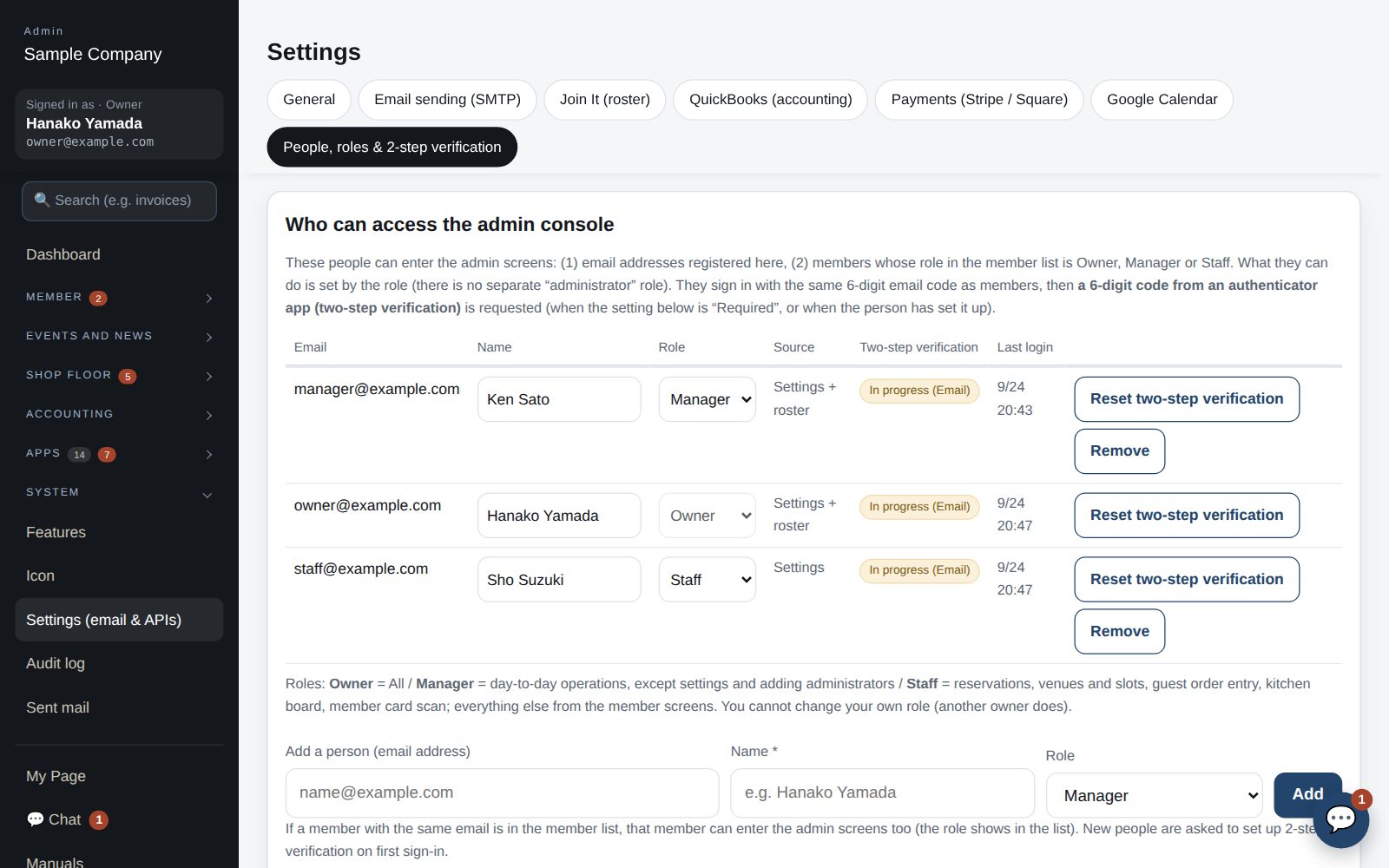
Three roles — owner, manager and staff. Choose which apps are on, what members see and who can use each app on the Add or stop apps screen, set the other screens and people's roles on Screens & roles, then preview exactly what staff or members will see. Sign-in uses emailed codes, with two-step verification and an audit log.

Owner (everything), manager (daily operations), staff (front line and requests).
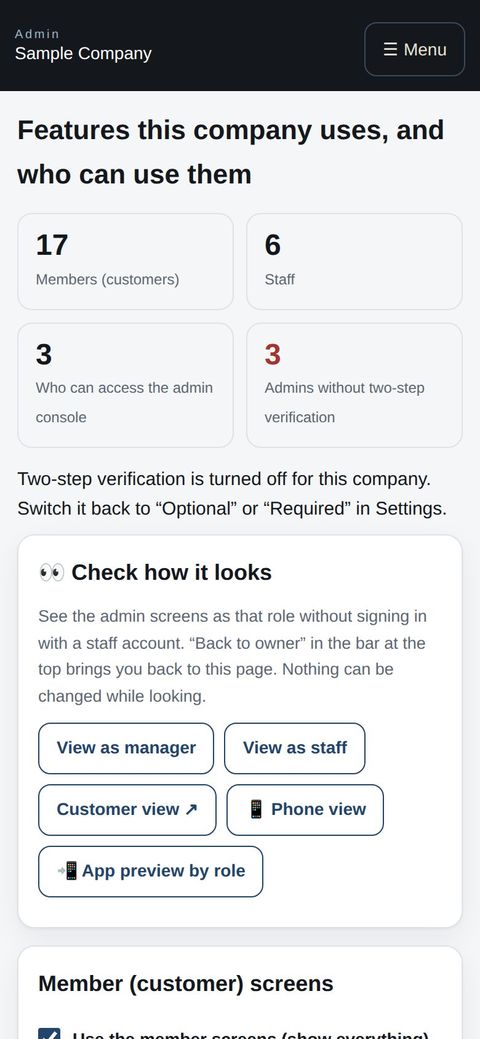
Dropdowns on Add or stop apps (per app) and Screens & roles (other screens) set who can use what.
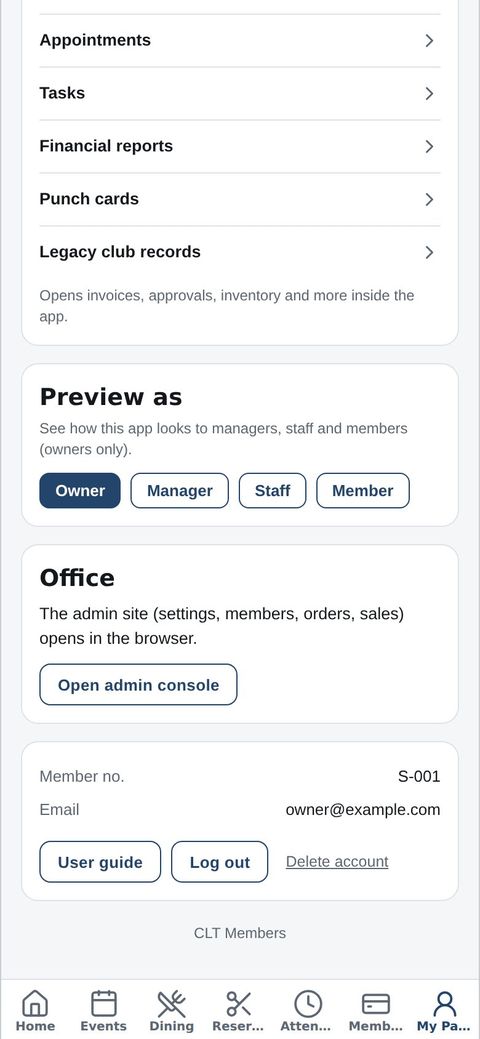
See staff or member screens without signing in again.
Emailed 6-digit codes plus authenticator apps, and every change in the audit log.
Settings → Admins, or make a member staff in the roster.
System → Add or stop apps for apps and access; Screens & roles for people's roles.
Use “View as…” and return with “Back to owner”.
No passwords; each person sees the screens and guides for their role.
The Add or stop apps and Screens & roles screens open on a phone, and owners can switch the app between the manager, staff and member views from My Page to see exactly what each one sees.